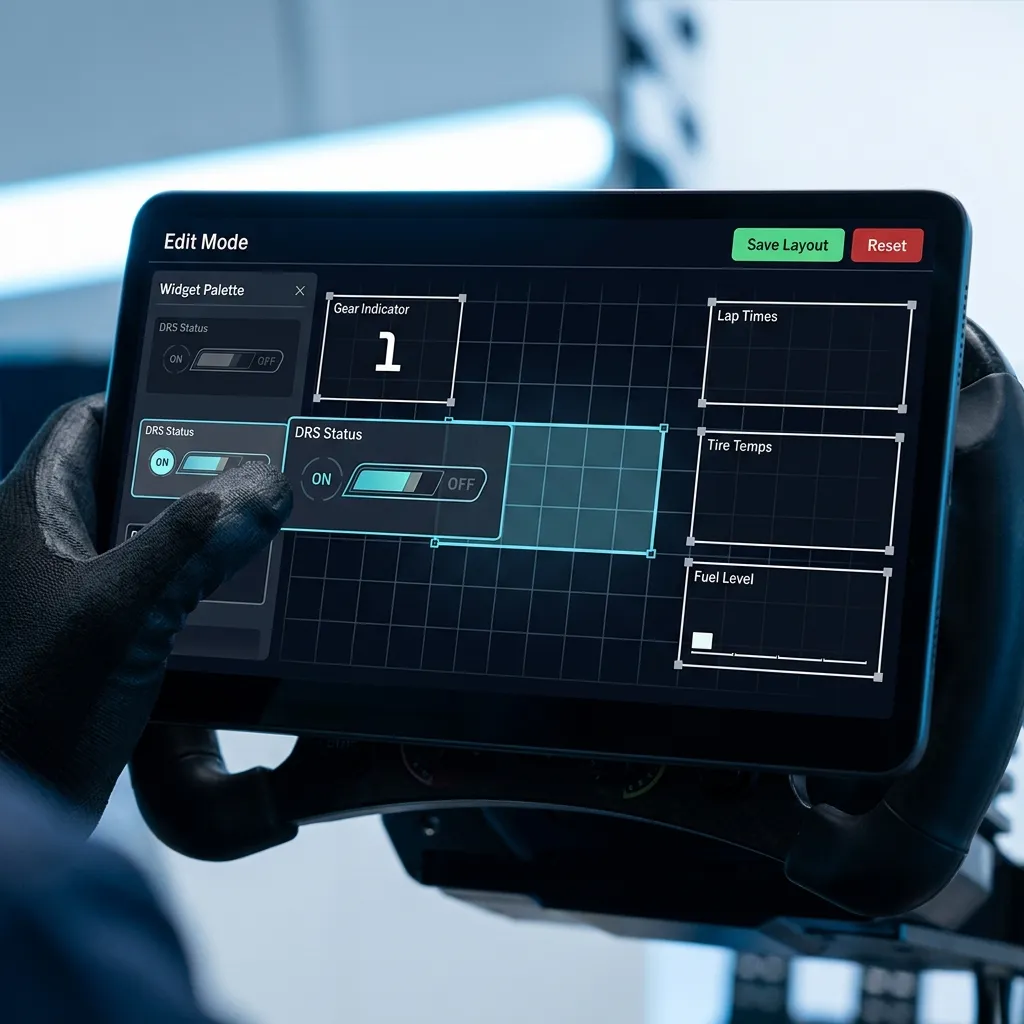
Start with your race-weekend decisions, not aesthetics
Before changing colors or wallpaper, decide what you check most often: next session time, live standings, lap trend, or news. That decision should drive your widget order.
Fans usually search for practical terms such as F1 dashboard widgets, F1 new tab setup, and custom race dashboard layout because they want less tab-hopping, not more decoration.
Trademark note: F1X is unofficial and independent. It is not affiliated with Formula One World Championship Limited, FIA, or teams.
A practical 4-zone layout that works
- Top-left: Live session widget for immediate race state.
- Top-center: Live standings for current order and gaps.
- Top-right: Favorites widget to track your driver and team.
- Second row: Calendar + Next Race countdown + one analysis widget.
Which widgets to hide on normal weekdays
During non-race days, hide one of the heavier analysis views and keep calendar, standings, and news visible. You can restore hidden widgets anytime from the Available Widgets panel.
Theme and wallpaper tips that improve readability
- Use high-contrast widget theme for race-day speed-reading.
- Keep wallpaper dimness high enough that table text remains legible.
- Choose a layout first, visual styling second.
A quick race-morning reset routine
On race morning, open F1X and run this sequence: verify session timing, verify favorites state, then pin standings and countdown in your top row. This takes under two minutes and prevents most context misses.
FAQ
How many widgets should I keep visible?
Keep only what you actively read. For most users, 6 to 8 visible widgets is the sweet spot.
Can I restore a widget after removing it?
Yes. Removed widgets can be re-added from the Available Widgets menu.
Should I keep lap widgets visible all week?
Usually no. Many fans enable lap-focused widgets during live sessions and reduce them on weekdays.
Build your own race-day dashboard
Install F1X and create a layout optimized for your own race-weekend decisions.
Install F1X